dnaLIMS Administrator Demo
This document provides a step-by-step demo of dnaLIMS.


The goals of the demo are to:

1. Enter Sequencing Requests
2. Display all your Requests
3. Create a Sequencer Sample Sheet
   A. Process Flow Information
4. Enter Sample Sheet Run Folder Name
5. Enter Sequencer Results
6. Process a Run Folder into dnaLIMS
7. Retrieve Sequencing Results
8. Create an Invoice

Entering sequencing requests, viewing, and retrieving sequencing results are done within the User
Tools section of dnaLIMS, creating a Sequencer Sample Sheet and Processing a Run Folder use the
Administrator Tools.


1. Enter Sequencing Requests --

    Select the Sequencing Request Form hyperlink within the User Tools section.
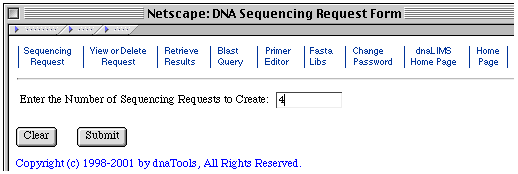
    A.  Enter the number of Sequencing
        Requests to create.

        This will dynamically create a
        Sequencing Request table with
        the number of rows specified.
|
 |
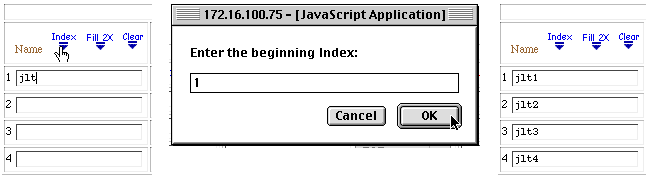
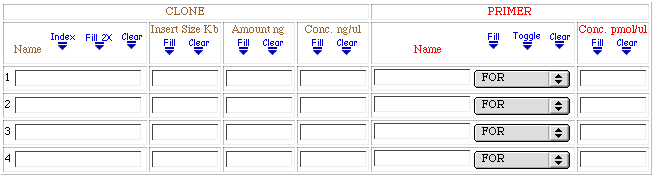 B. Enter a sample name within the first rows Clone Name text box.
C. Select the Index icon.
A dialog box will appear, Enter "1".
This will append an index to the sample name and fill the Name column.
B. Enter a sample name within the first rows Clone Name text box.
C. Select the Index icon.
A dialog box will appear, Enter "1".
This will append an index to the sample name and fill the Name column.
 D. Fill in the first row of the remaining columns and select the "Fill" icons in each
column to "Fill Down" the initial column value.
You can manually enter information into each cell of the table.
E. Fill in or select other values within the Sequencing Request form.
F. Select the Validate button.
G. Select the Submit button.
This will enter the Sequencing Request into the Sequencing Request Queue.
Print two copie of the summary page, return one copy with your samples to the core facility.
H. Return to dnaLIMS Menu page.
D. Fill in the first row of the remaining columns and select the "Fill" icons in each
column to "Fill Down" the initial column value.
You can manually enter information into each cell of the table.
E. Fill in or select other values within the Sequencing Request form.
F. Select the Validate button.
G. Select the Submit button.
This will enter the Sequencing Request into the Sequencing Request Queue.
Print two copie of the summary page, return one copy with your samples to the core facility.
H. Return to dnaLIMS Menu page.
2. Displaying all your Requests --3. Create Sequencer Sample Sheet --
Select the Display Sequencing Requests hyperlink within the user tools section to view all your samples within the sequencing request queue. Selecting a samples Req # hyperlink will display the View or Delete a DNA Sequencing Request form. Use this form to View or Delete the selected sequencing request.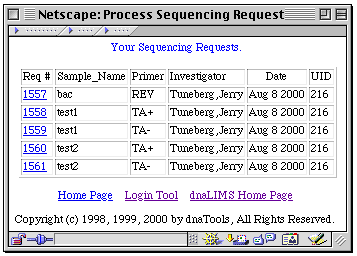
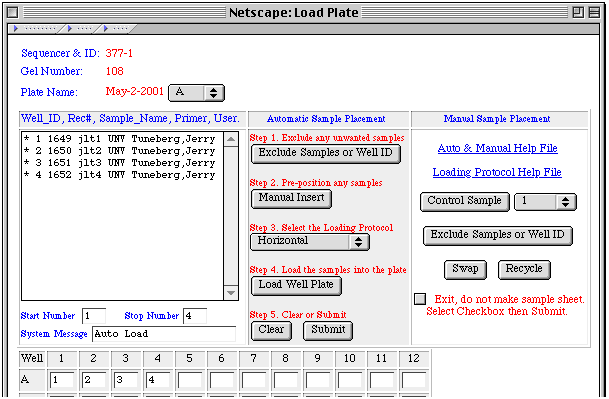
Creating a Sample Sheet is a two step process. First, the Create Sequencer Sample Sheet hyperlink is selected. This displays the Select Plate form. This form is used to capture the Seqencer type, Well Plate size, and the sort method. Second, after the Submit button is depressed the Load Plate form is displayed. This form displays the Sequencing Samples and loads the samples into the pre-selected Well Plate. After the Samples are located into the Well Plate, the Submit Button is selected. This will create all the database entries the Sample and Reaction Sheet. A.1. Select the Create Sequencer Sample Sheet hyperlink. A.2 Leave the 96 Lane comb selected. A.3 Set the Sequencer Type to 377. A.4 Leave the Sort Samples set to None. A.5 Select the Submit Button.The Load Plate form is displayed.
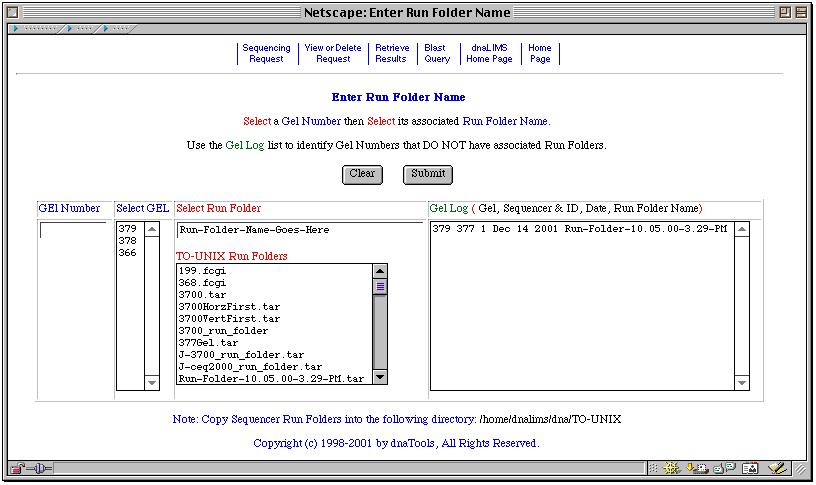
B.1 Select the Load Well Plate button and observe the samples populate the Well Plate. B.2 Select the Clear button and change the Loading Protocol from Horizontal to ABI96. Select the Load Well Plate button. This will load the plate in a manner recommended by ABI. B.3 Select the Clear button and change the Loading Protocol from ABI96 to Horizontal. Select the Load Well Plate button. B.4 Select the Submit button. This will automatically create the Sample Sheet with the selected samples and display the Plate Number naming the Sample Sheet. Remember the newly created Sample Sheet Number. B.5 Return to dnaLIMS Menu page. View the Sample Sheet -- C.1 Select the View Sample Sheet & Reaction Sheet hyperlink within the Reports Section. C.2 Select the View Sample Sheet button, The Sample Sheet Number, then the Submit Button. Select the browsers back button and make other selections to view other reports and the Reaction Sheet. C.4 Return to dnaLIMS Menu page. Additional Process Flow Information -- NOTE: Steps A and D below are not excercised with the demo. A. The software creates a Sample Sheet named abiGel#.ss. This file is copied to the ABI Macintosh and imported into the Sequencers Data Collection Module. This is not done in the demo. Select the Reports hyperlink to view & download the Sample Sheet. B. After the Sample Sheet is imported into the Data Collection software, the Data Collector creates the Sample Sheet Run Folder. The Run Folder name is manually documented or copied to the clipboard and entered into dnaLIMS database via the Enter Run Folder Name hyperlink in Step 4. below. C. After the Gel is processed through the DNA sequencer, the success or failure of each sample reaction needs to be entered into the samples database. This must to be done before the Gel can be processed into dnaLIMS. Do this in step 5 below. D. After the Gel is processed through the DNA sequencer the resulting Run_Folder is copied to the Unix computer into the TO-UNIX directory. This is not done in the demo. 4. Enter Sample Sheet Run Folder Name -- 1. Select the Enter Run Folder Name hyperlink to update the database with the name of the Sample Sheets Run Folder. Select the newly created Sample Sheet Number from the Gel Number Select List. 2. Select the Run Folder Name from the TO-UNIX Run Folders Select List. (In this demo select the Run Folder Name "Run-Folder-10.05.00-3.29-PM.tar") Use the Gel Log list to identify Sample Sheets that DO NOT have associated Run Folders. Select the Submit button. NOTE: Most core facilities rename the Run Folder to include the of the Sample Sheet. Example: rf130
5. Enter Sequencing Results -- 1. Select the Enter Sequencing Results hyperlink to update the database regarding the success or failure of each reaction. Enter the Sample Sheet Number to display the appropriate Sample Sheet or select the Sample Sheet Number from the Sample Sheet Number select list. Select the Submit button. 2. A sequencing results chart is displayed. Select the Submit button on the chart.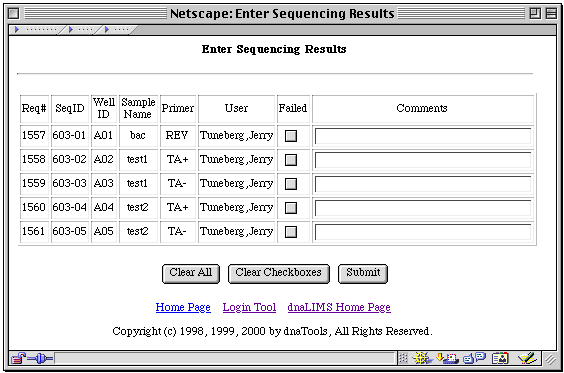
3. Return to dnaLIMS Menu page. 6. Process a Run Folder into dnaLIMS -- This demo will use the Sample Sheet you created to process a Run Folder into dnaLIMS. The demo Run_Folder has 12 lanes of sequence and trace files; its name is Run-Folder-10.05.00-3.29-PM.tar. It is in a tar archive format. 6.1 Select the Process Sample Sheet into dnaLIMS hyperlink. 6.2 Select the Sample Sheet Run Folder Pair from the Run Folder Select List. This will automatically fill in the Sample Sheet, Run Folder, Sequencer text boxes and select Radio button 4. Select the Submit button. 6.3 Return to dnaLIMS Menu page. Go to Step 7. below. NOTE: Many processing messages appear on the screen. Processing is complete when the dnaTools Copyright notice appears at the bottom of the page and the software indicates the Run folder was Processed Successfully.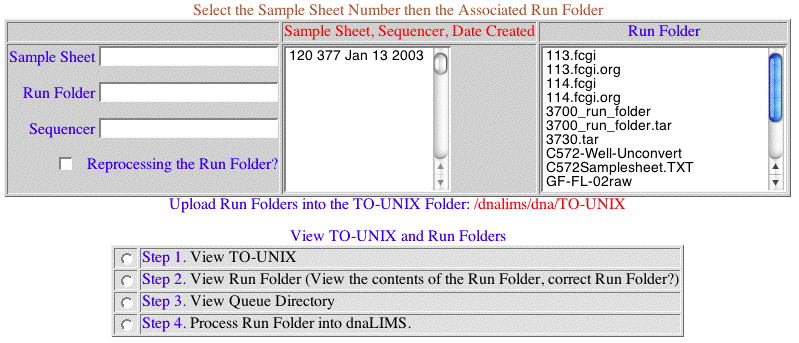
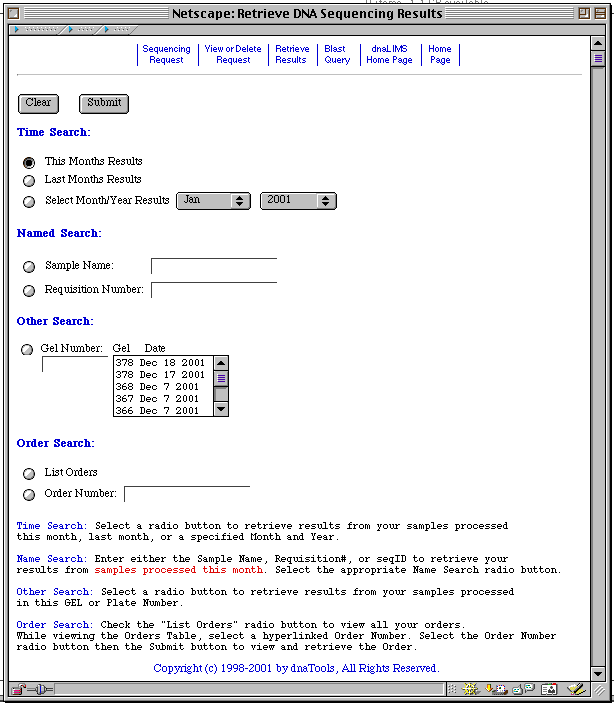
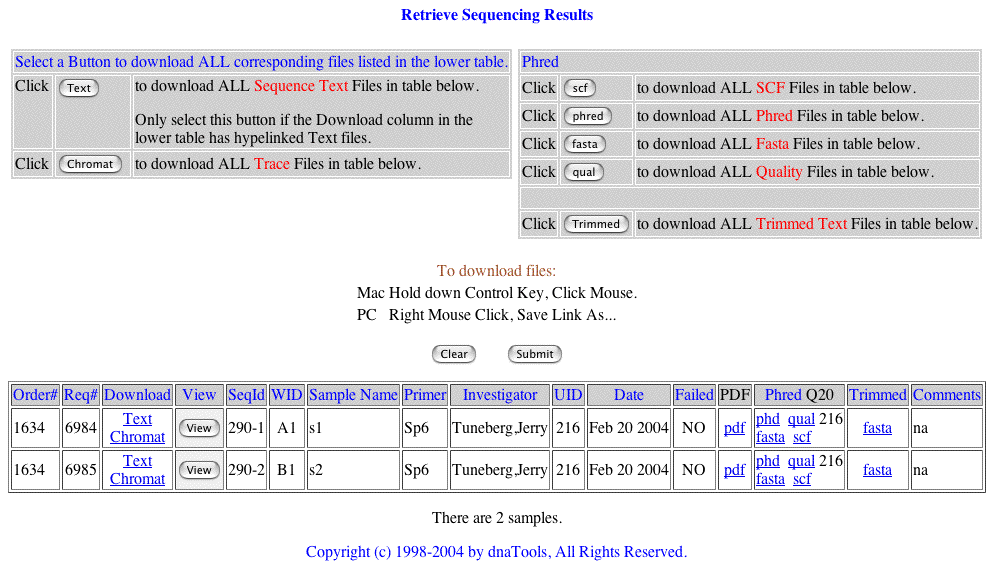
7. Retrieve Sequencing Results -- 7.1 Select the Retrieve DNA Sequencing Results hyperlink to view and retrieve your sequencing results. Select the This Month Search to display all samples processed during the current month.Select the Submit button. 7.2 A hyperlinked summary table will display this months sequencing results. Selecting the hyperlinked Sequence and Trace files will initiate a FTP download of those files. Selecting a View button will display the seqeuence file.8. Create an Invoice -- 8.1 Select the Create Customer Invoice hyperlink in the Administrators section. 8.2 Select your Users Name. 8.3 Check the All Orders checkbox and Select the Current Date then Select the Submit button. All your orders are displayed. 8.4 Select the first Radio button in the list then Select the Submit button. The Invoice for the order is displayed. Select the FTP hyperlink, at the bottom of the page, to FTP the Invoice Spreadsheet to your local computer. This completes the dnaLIMS demo.