Enter Sequencing Requests
1. Create four DNA Sequencing Requests,
2. Display Your Sequencing Request,
Enter Sequencing Requests
1. Select the DNA Sequencing Request Form hyperlink.
1.1 Enter the number of sequencing requests to make and Select the Submit button.
In this example 4 was entered. A sequencing request form is displayed with a table
containing the number of rows you specified. Your sequencing request form may be different.
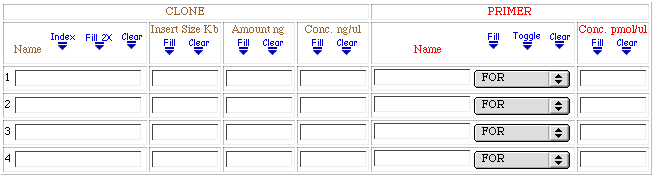
1.2 Enter the first Clone Name in the "Name 1" cell.
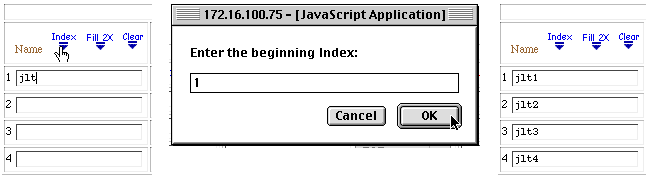
1.3 Select the Index icon.
A dialog box will appear, Enter "1".
This will append an index to the sample name and fill the Name column.
1.4 Enter values in the remaining columns.
1.5 Select the "Fill" icons in each column to "Fill Down" the initial column value.
1.6 Select a Primer with the Primer Select List. Select the Primer Name "Fill" icon.
1.7 Fill in the remaining information on the sequencing request form.
1.8 Select the Validate button.
1.9 Select the Submit button.
1.10 A summary table of your requests is displayed.
Print two copies of this page, one for your records and one for the core facility.
Bring a copy and your samples to the core facility.
1.11 Return to dnaLIMS Menu page by selecting the dnaLIMS Menu icon from the navigation bar.
View or Delete a Sequencing Request
2. Select the View or Delete a Sequencing Request hyperlink to view your sequencing request.
2.1 Ensure the View All Requests radio button is selected, then Select the Submit button.
A summary table of your sequencing requests is displayed. The requisition number field is hyperlinked.
Selecting this hyperlink will display the "View or Delete a Sequencing Request" form with the Req Number
listed within the "Requisition or Order Number" text box. Select the "View Request" radio button then
select the Submit button to view all details of this request.
2.2 Return to dnaLIMS Menu page.